Uploads & Downloads
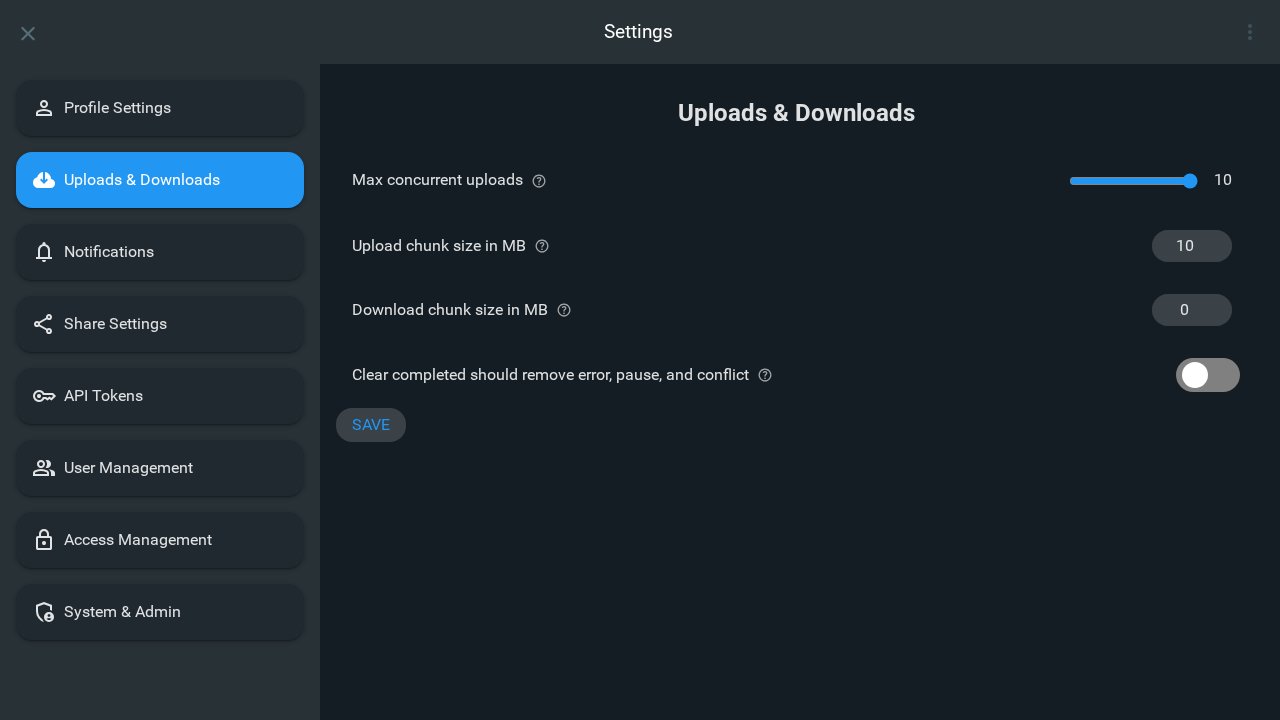
These settings control how uploads run (parallelism and chunking), how large downloads are split into chunks to avoid timeouts, and whether Clear completed removes every finished upload—including errors, pauses, and conflicts—not only successes.
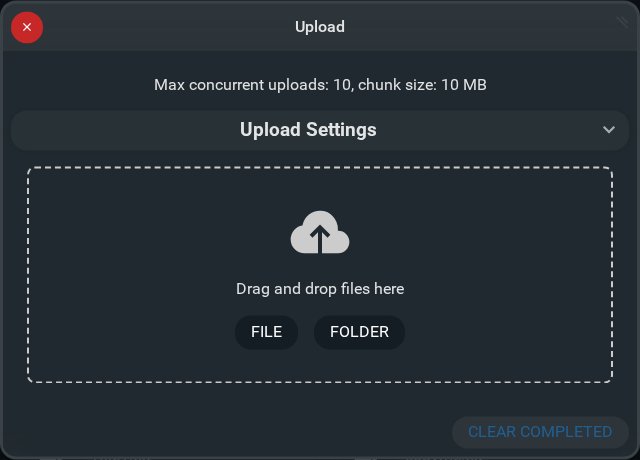
Users configure them from Settings → Uploads & Downloads or by modifying the settings in the Upload Prompt directly.
Some controls also appear under Upload settings inside the upload panel for quick changes without leaving the flow.
Administrators set defaults for new users with userDefaults.fileLoading in the instance configuration. See Users configuration for context (userDefaults do not overwrite existing users after creation).
Max concurrent uploads
Configuration: userDefaults.fileLoading.maxConcurrentUpload
The upper bound on how many uploads run at once. In Uploads & Downloads, this is controlled with a slider from 1 through 10.
Higher values often improve throughput but depend on the browser, network, and server—experiment if uploads feel slow or flaky.
Upload chunk size in MB
Configuration: userDefaults.fileLoading.uploadChunkSizeMb
Chunk size used when uploads are split across requests.
Typically 5 to 50 MB works well; smaller chunks suit unreliable or restricted networks.
Set 0 to turn chunked uploads off (direct uploads are used where applicable).
Download chunk size in MB
Configuration: userDefaults.fileLoading.downloadChunkSizeMb
When set greater than zero, single-file downloads use HTTP range requests in segments of up to this many megabytes (the last segment may be smaller). Chunked mode applies when the file is at least this large—helpful behind proxies or CDNs where very long single responses hit timeouts (for example Cloudflare 524).
Set 0 to disable chunked downloads.
Clear completed should remove error, pause, and conflict
Configuration: userDefaults.fileLoading.clearAll
When enabled, Clear completed removes every upload that has reached a finished state, including error, paused, and conflict rows—not only successful completions.
When disabled, “completed” clearing behaves more narrowly (success-only); leave this off if you want to inspect failures before dismissing them.
Upload Prompt
These settings are applied and can also be configured on the upload prompt used during uploads by clicking Upload Settings