Sidebar Options
Sidebar options adjust how the sidebar behaves: quick toggles, visibility of file actions, whether the folder tree shows files, and whether the sidebar stays visible while you preview or edit. Users change them under Settings → Profile in the Sidebar options section (when settings are not disabled for the account).
Administrators can set default values for new users with userDefaults.* and userDefaults.preview.disableHideSidebar in the instance configuration. Defaults do not retroactively change existing users.
For customizing sidebar links (sources, shares, tools, bookmarks), see Sidebar customization.
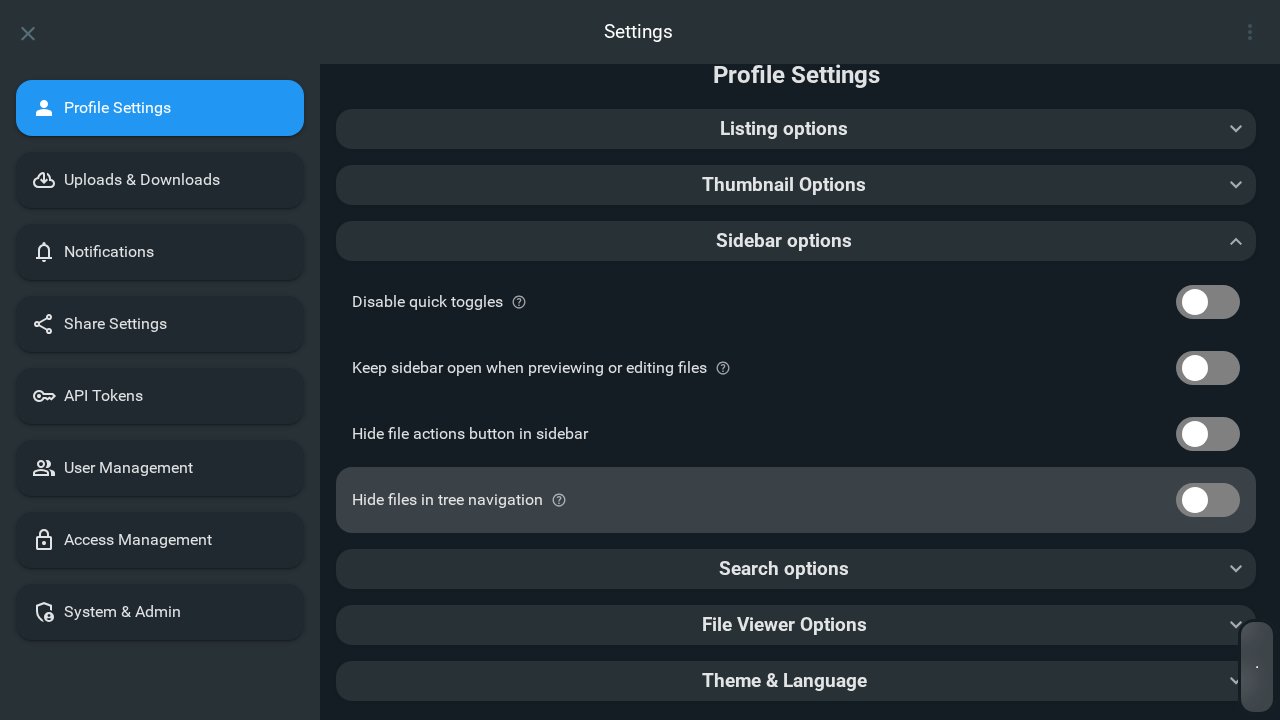
Disable quick toggles
Configuration: userDefaults.disableQuickToggles
When enabled, the quick toggles that normally appear on the sidebar are hidden.
Keep sidebar open when previewing or editing files
Configuration: userDefaults.preview.disableHideSidebar
Despite the internal setting name, turning this on means the sidebar stays visible: it does not collapse automatically while you preview or edit files.
Hide file actions button in sidebar
Configuration: userDefaults.hideSidebarFileActions
When enabled, the file actions control is hidden from the sidebar.
Hide files in tree navigation
Configuration: userDefaults.hideFilesInTree
When enabled, the sidebar tree shows folders only; files are omitted from the tree (directories remain expandable as usual).