Listing Options
Listing options control how items behave in the file listing and related menus: confirmations, dates, visibility of hidden files, quick actions, archive cleanup, and context-menu entries. Users change them under Settings → Profile in the Listing options section (when settings are not disabled for the account).
Administrators can set default values for new users with the userDefaults block in the instance configuration.
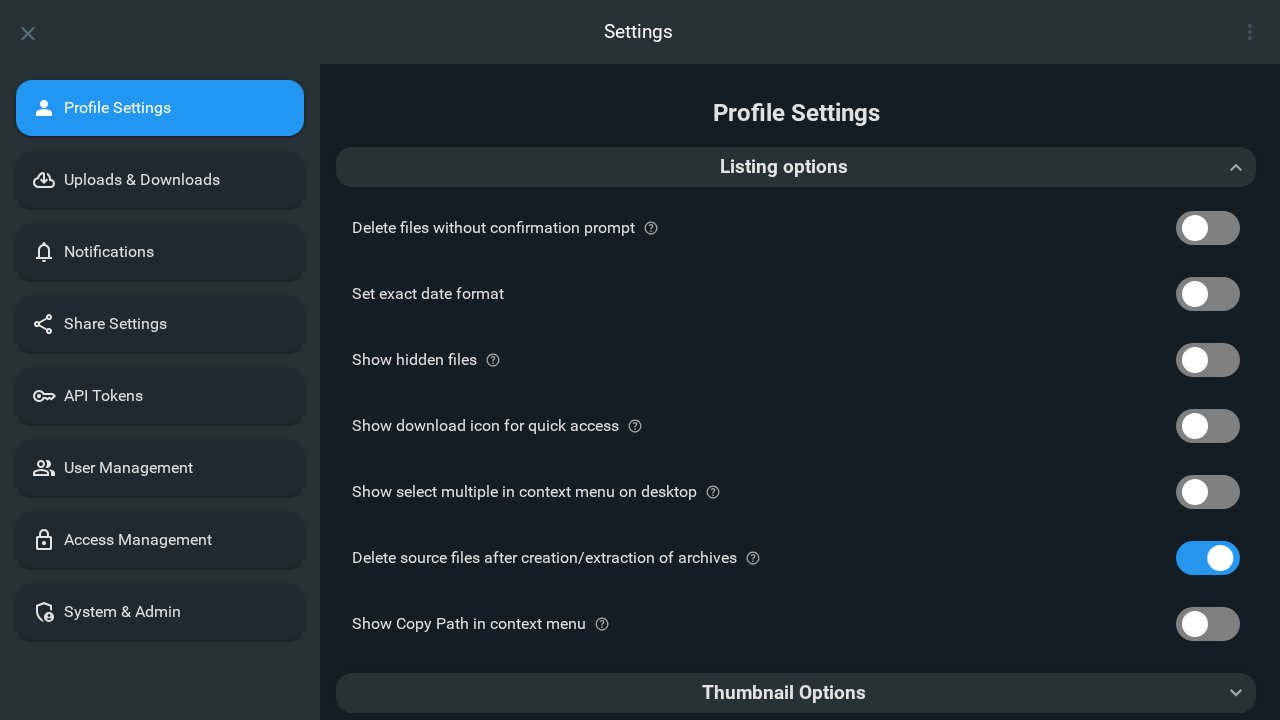
Delete files without confirmation prompt
Configuration: userDefaults.deleteWithoutConfirming
When enabled, deleting files or folders does not show a confirmation prompt. Disable this unless you are comfortable with immediate deletes.
Set exact date format
Configuration: userDefaults.dateFormat
When disabled (default), modified dates in listings use relative wording (for example, “2 hours ago”). When enabled, the UI shows an exact timestamp instead.
Show hidden files
Configuration: userDefaults.showHidden
Shows hidden items in the listing (for example dotfiles such as .thumbnails, or Windows hidden attributes). Hidden items may still be reachable depending on indexing and rules when this is off.
Show download icon for quick access
Configuration: userDefaults.quickDownload
Shows a download control on each item so you can download in one click without opening the preview or menu.
Show select multiple in context menu on desktop
Configuration: userDefaults.showSelectMultiple
On desktop, the context menu usually omits a select multiple entry that exists on mobile. Enabling this always exposes that option on desktop as well.
Delete source files after creation/extraction of archives
Configuration: userDefaults.deleteAfterArchive
After you successfully create an archive or extract one, the original source files are removed automatically when this is enabled.
Show Copy Path in context menu
User preference: showCopyPath (stored on the user; defaults to off when unset)
Adds a Copy Path action to the file and folder context menu when a single item is selected, so you can copy its path to the clipboard quickly.