File Viewer Options
File viewer options control media playback, the text editor, markdown opening behavior, and which extensions use File Browser’s built-in viewer/editor versus downloads or other handlers (including OnlyOffice when configured). Users change them under Settings → Profile in the File Viewer Options section (when settings are not disabled for the account).
Administrators can set defaults for new users with userDefaults.preview.*, userDefaults.editorQuickSave, userDefaults.preferEditorForMarkdown, userDefaults.disableViewingExt, userDefaults.disableOnlyOfficeExt, and userDefaults.debugOffice. Defaults do not retroactively change existing users.
For what each viewer supports (formats, editors, images, Office), see Previewing files.
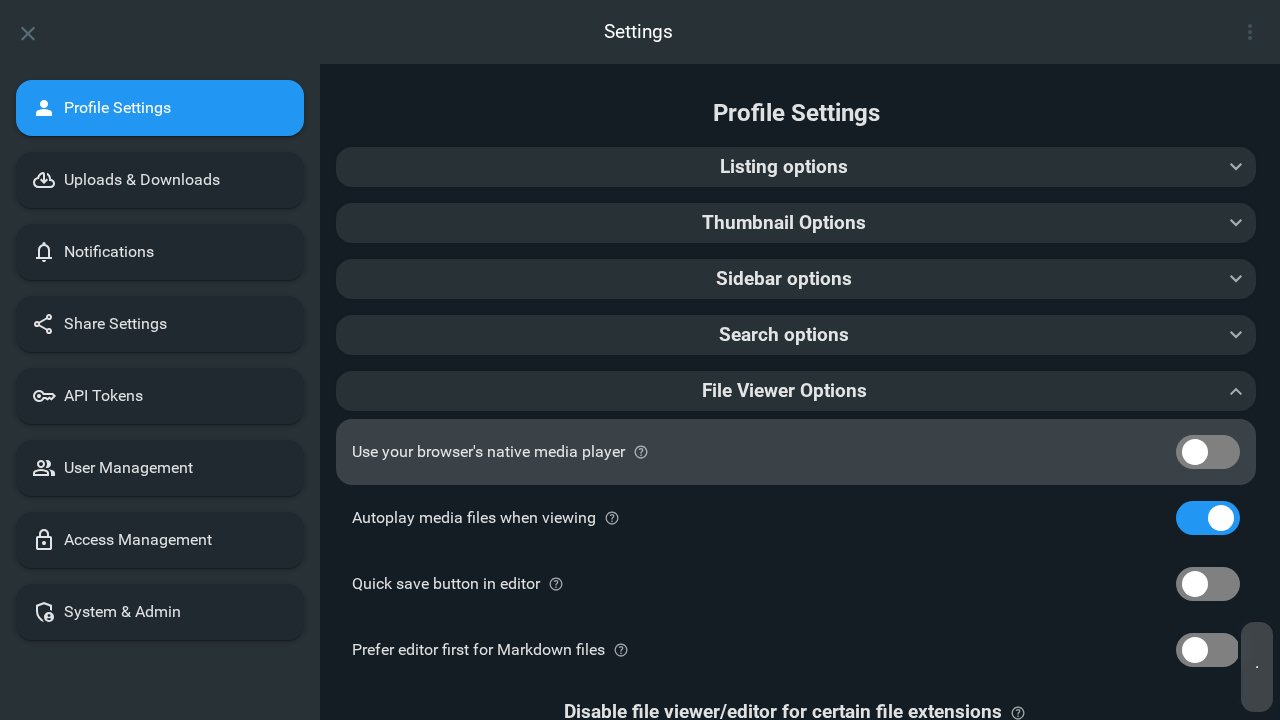
Use your browser’s native media player
Configuration: userDefaults.preview.defaultMediaPlayer
When enabled, video and audio use the browser’s built-in playback controls instead of File Browser’s included player.
Autoplay media files when viewing
Configuration: userDefaults.preview.autoplayMedia
When enabled, compatible media starts playback automatically when you open it in the viewer.
Quick save button in editor
Configuration: userDefaults.editorQuickSave
When enabled, the text editor prioritizes the save action so you always see the save control prominently.
Prefer editor first for Markdown files
Configuration: userDefaults.preferEditorForMarkdown
When enabled, opening a Markdown file uses the editor first. When disabled, the Markdown viewer opens first instead.
Disable file viewer/editor for certain file extensions
Configuration: userDefaults.disableViewingExt
Enter a space-separated list of extensions (for example .txt .pdf) and choose Save to disable File Browser’s built-in viewer and editor for those types.
Disable office viewer for certain file extensions
Configuration: userDefaults.disableOnlyOfficeExt
This block appears only when OnlyOffice integration is available. Enter a space-separated list of extensions to disable the OnlyOffice editor and viewer for those types, or * for all (see the in-app help for examples).
Enable OnlyOffice Debug Mode
Configuration: userDefaults.debugOffice
Shown together with the OnlyOffice extension controls when integration is available. When enabled, a debug popup with additional information appears in the OnlyOffice editor.