WinSCP
WinSCP is a free file manager for Windows supporting FTP, SFTP, S3 and WebDAV.
Creating a new site
Open FileBrowser WebUI in your browser, navigate to your desired folder, edit the URL, and replace
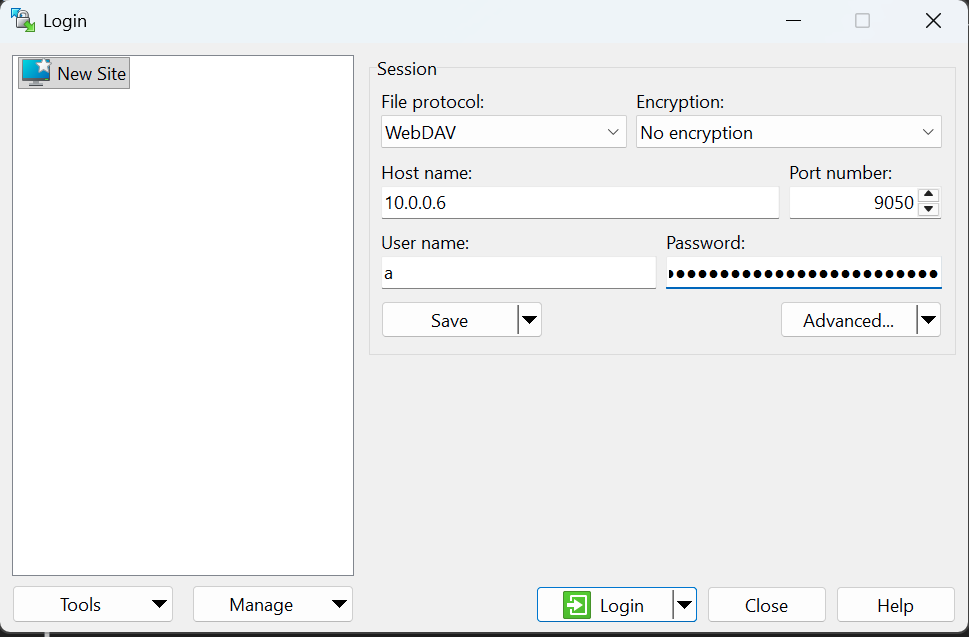
/files/with/dav/. For example,https://files.example.com/files/data/folderbecomeshttps://files.example.com/dav/data/folder/. Copy this to clipboard.Open WinSCP, you will see a popup like below. You need to update the
File ProtocoltoWebDAV.
- Under
Host name, paste the URL you copied previously. You will notice that the path/dav/data/folder/,http(s)(andportif usinghttp) are missing, no need to retype them. WinSCP autoconfigures the path internally and updates necessary values.
While most the configuration is visible in the popup window, the path, /dav/data/folder/, is stored under Advanced > Environment > Directories > Remote Directory. To avoid this locating this, we just paste the full URL and WinSCP will automatically fill the necessary info for us even fixing the host name, port number and encryption accordingly.
For the username, you need to fill a value. Preferably your username in FileBrowser.
Reopen FileBrowser WebUI in your browser, navigate to Settings > API token. Create an uncustomized token for WinSCP (or if you already created one, then copy it). Customized tokens will not work with WinSCP.
Paste the API token in the password field of WinSCP.
Click Save to create a new site, so it’s easier to re-login.
- Give a site name that is easy to remember.
- Check
Save passwordif you do not want to copy and paste the API token every time. Not recommended if multiple people may access your Windows PC. - Check
Create desktop shortcutif you want one click to open the FileBrowser’s WebDAV.
Access Denied: You may encounter access denied in the first try. You will need to paste the API token again to access the WebDAV.
- You will now have access to FileBrowser via WebDAV and WinSCP.
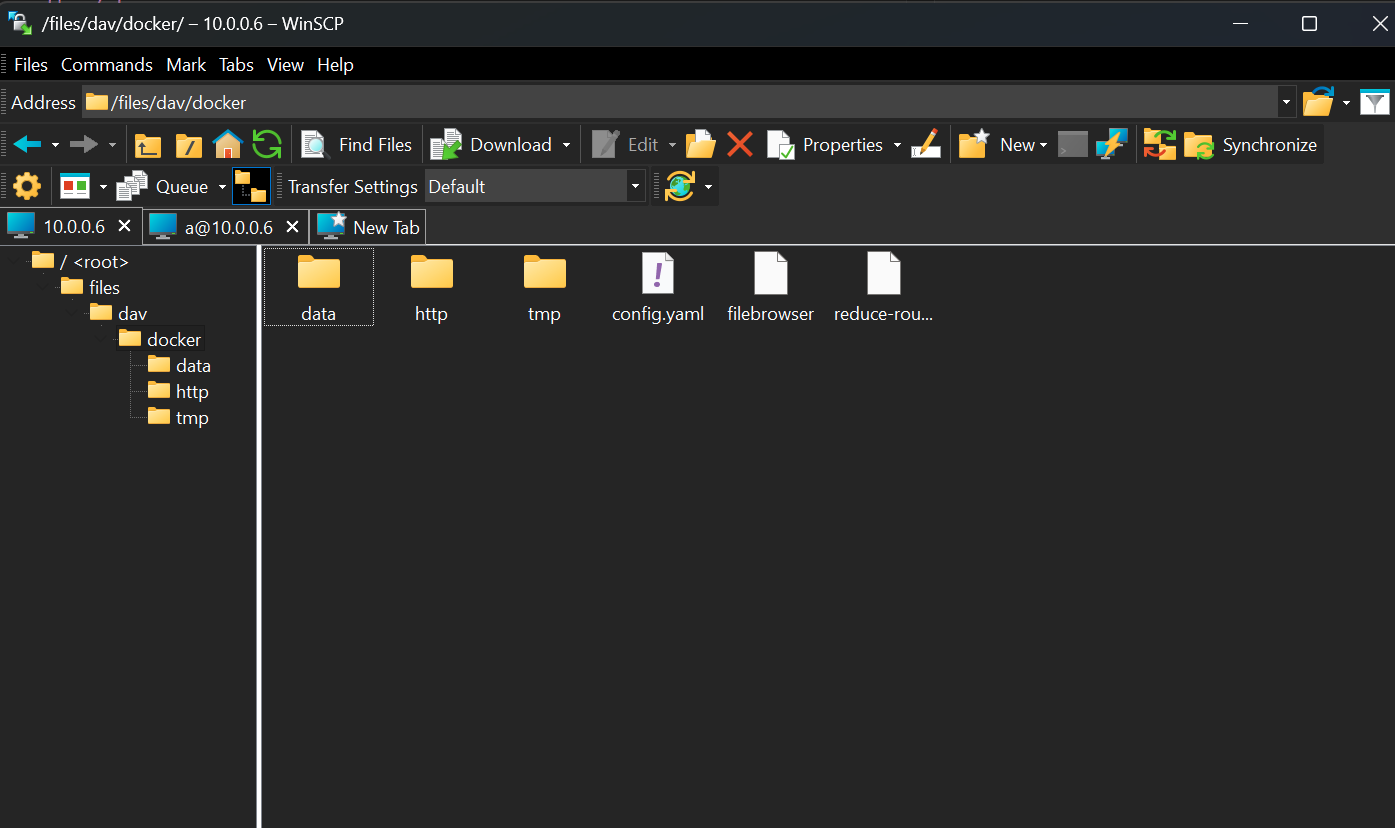
- Here after choose the site in the left panel in WinSCP and click
Login.
Updating password
You will encounter access denied, if the API token is expired (or deleted). When this occurs you will find a popup appearing like below.
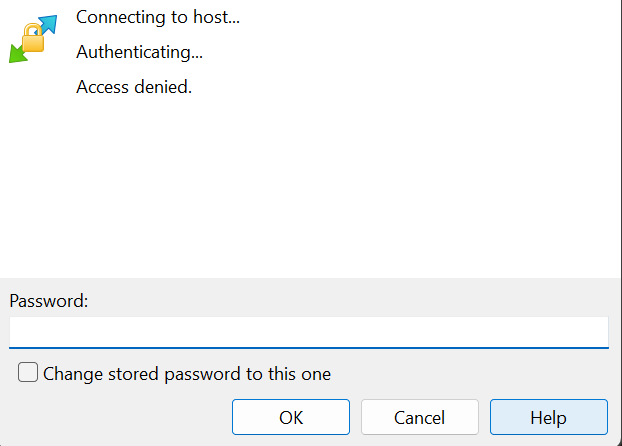
Create a new API token as we did in the previous section and paste it in here. Make sure you check Change stored password to this one in WinSCP.
Troubleshooting
Access Denied
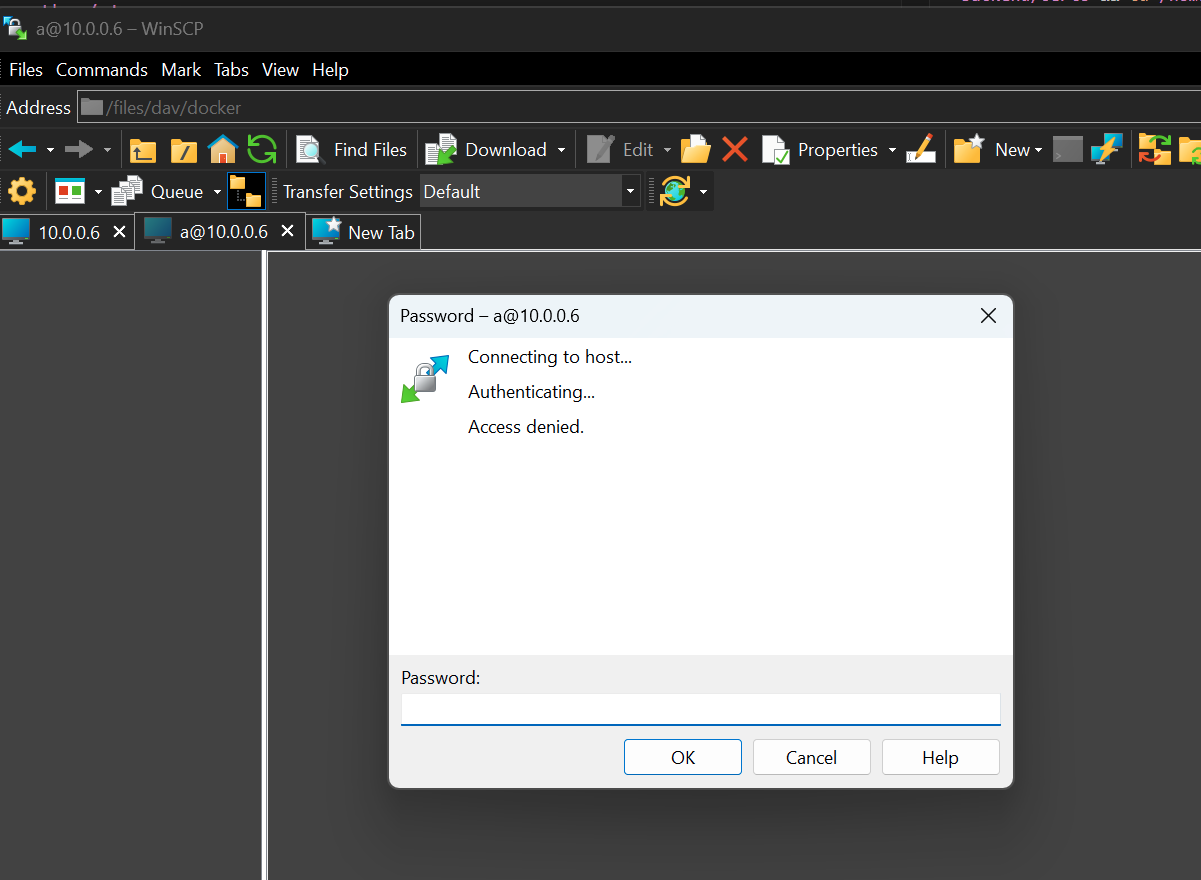
Make sure you are using an API token with customization turned off. If you are, then re-enter the API token again in the prompt.
If the problem is still not solved, you get access denied could be for the following reasons:
- The API token expired: Try setting a more long duration time for the API token.
- The path that you’re trying to access is not valid: Make sure that you access to the path by checking in the WebUI.
- You don’t have enough permissions: Check that the user has the permissions to access WebDAV, you’ll need
downloadpermission to view, andmodify/create/deletepermission to modify the files.