Basic Docker Setup
Complete setup for running FileBrowser Quantum with OnlyOffice using Docker Compose on your local network.
v2.0.0 behavior change
v2.0.0 rejects userDefaults.permissions. File permissions are per source: set server.sources[].config.defaultPermissions (view, download, modify, create, delete) or edit the scope in User Management. Global flags are userDefaults.account.permissions (admin, api, share, realtime). To edit documents in OnlyOffice, each user needs view and modify (and usually download) on the source that contains the files.
This guide uses HTTP which is not secure for production. Only use for local development or testing. For production deployments with HTTPS. See Traefik Setup
Prerequisites
- Docker and Docker Compose installed
- Basic understanding of Docker networking
- FileBrowser Quantum image:
gtstef/filebrowser(Docker Hub) orghcr.io/gtsteffaniak/filebrowser(GitHub Container Registry)
Quick Start
Step 01: Generate JWT Secret
First, generate a strong secret for securing communication between FileBrowser and OnlyOffice:
Save this secret - you’ll need it for both FileBrowser and OnlyOffice configuration.
Step 02: Create Docker Compose File
Create a docker-compose.yaml file:
| |
Step 03: Create FileBrowser Configuration
Create a data directory and config.yaml. v2.0.0 creates the SQLite database automatically on first run — you do not need to create an empty database file.
| |
Then populate the config, see Getting started.
| |
For editing (not view-only), set modify: true under server.sources[].config.defaultPermissions or enable Modify on the user’s scope in User Management. OnlyOffice requires view on the source; editing also requires modify.
Step 4: Start Services
| |
Wait for OnlyOffice to fully start (usually takes 30-60 seconds if you create or recreate the container).
Step 5: Verify Installation
If you are running docker compose on something like WSL or your local machine, you should be able to access http://localhost:8081 and see only office is ready.
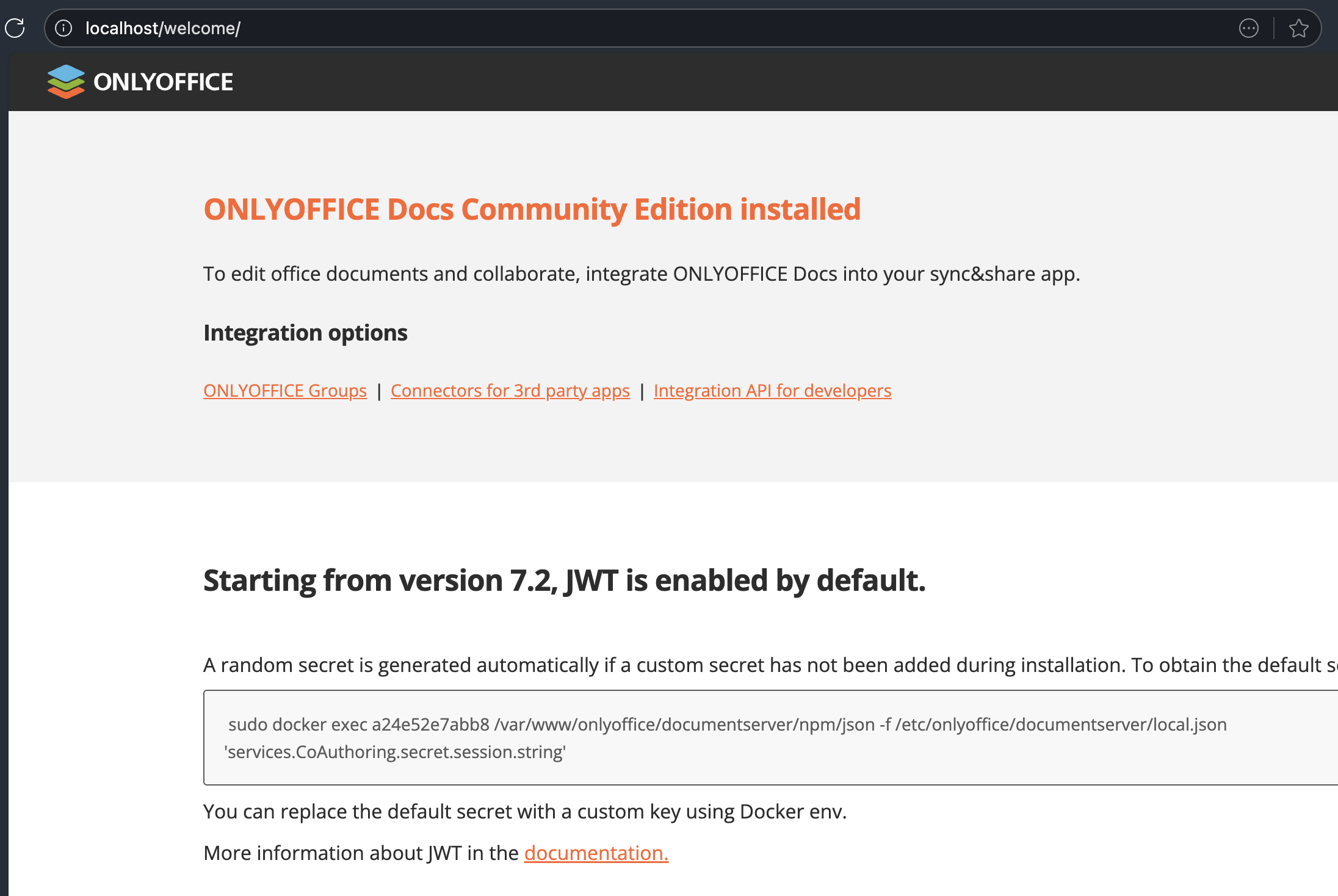
Or check via terminal:
Check OnlyOffice Health:
Check FileBrowser:
- Open browser and navigate to
http://localhost:8080 - Login with default credentials (admin/yourpassword)
- Upload a test document (could be a
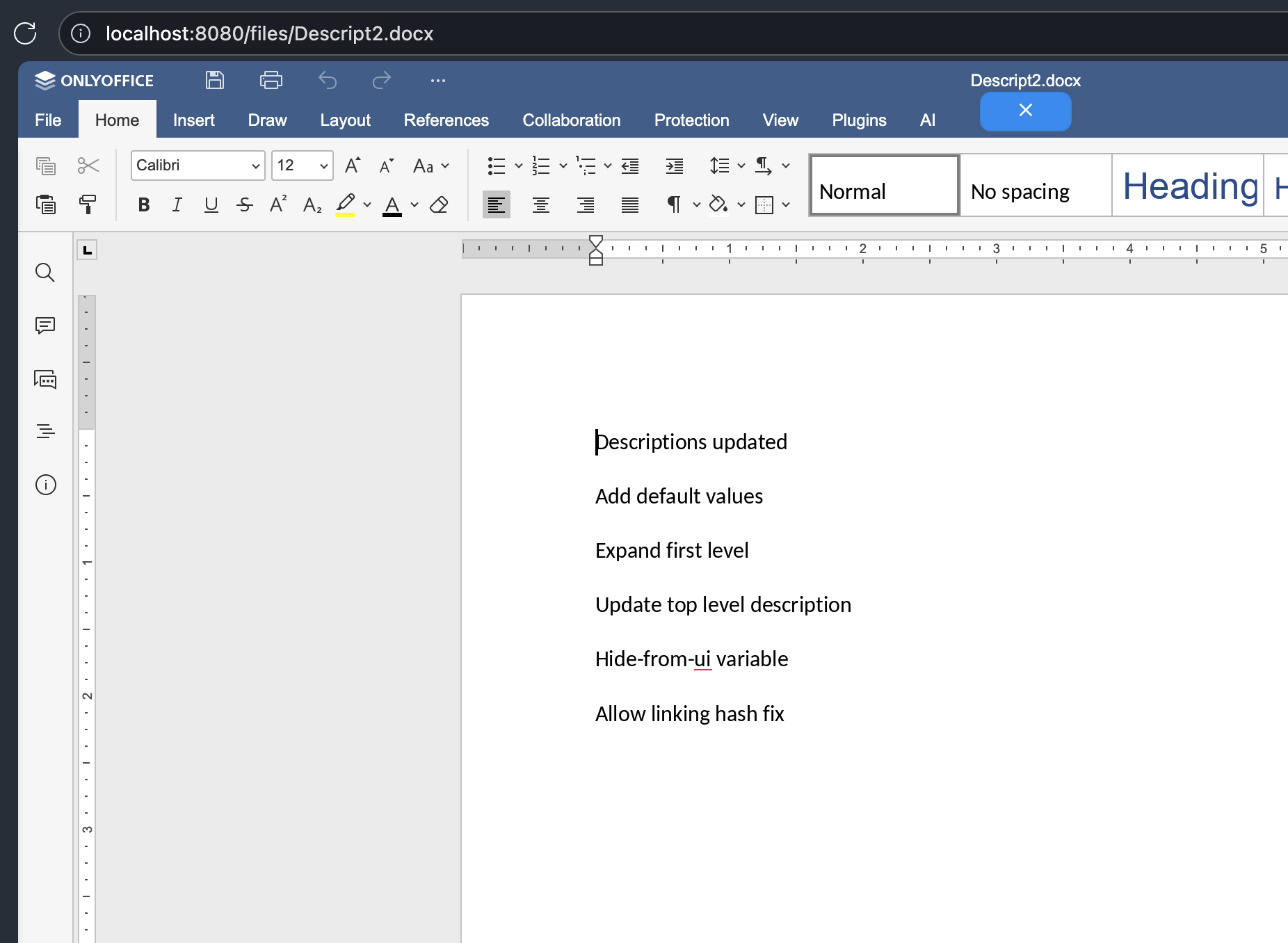
.docx,.xlsx, or.pptx) - Click on the document to preview - should open in OnlyOffice editor
You should see something like this:
Disable Editing - View Only
In FileBrowser config:
Next Steps
- Production Setup: See Traefik Full Setup Guide for complete services configuration ready for production.
- Internal Office HTTPS: See Office Internal HTTPS Guide for advanced deployment using internal HTTPS for onlyoffice.
- Troubleshooting: See Office Troubleshooting for detailed solutions.
- Configuration: See Office Configuration for all available options.