WebDAV
What is WebDAV?
WebDAV is a feature in FileBrowser that will let you access and manage your files directly from your devices remotely.
It’s also an alternative to the WebUI since you can mount/use one (or multiples) of your sources directly on your devices and manage the files stored in them. This allows the use of native applications to create/edit/organize files via WebDAV that are not possible via WebUI. For example, you can edit documents using native office suites without Office Integration enabled, or organize folders/files using native apps like Explorer on Windows (In versions before Nov 2023), Finder on macOS, Thunar/Dolphin in Linux, etc. You can also use any third party client or app that support WebDAV to access your files!
v2.0.0 behavior change
WebDAV permission checks are per source (the source name in /dav/<source>/). Each capability is checked separately — view and download are not the same. view is new in v2.0.0 — in v1.x, listing a source was always allowed. See Required permissions below. Token-based WebDAV uses the token owner’s per-source permissions (intersected with any file caps on the token).
How to use WebDAV
WebDAV is enabled by default. Clients connect with Basic Auth: the password must be a full, uncustomized API token issued in the Web UI. Before you configure a client, make sure these line up:
- Server URL — Starts with
/dav/<source name>and matches how you reach FileBrowser (direct host, port, or path behind a reverse proxy). See Server URL below. - HTTP or HTTPS — Use the same scheme (and port) as in the browser. Some clients call this WebDAV vs WebDAVS or plain HTTP vs HTTPS; pick the one that matches your deployment (TLS on 443 vs plain HTTP on your FileBrowser port).
- Password — The uncustomized API token. Customized tokens may not work with many webdav clients.
For a step-by-step example on WinSCP, see the WinSCP guide.
API tokens
Settings → API Tokens is only available if your user has api or admin permissions. If you are logged in as a normal user and do not see API Tokens, make sure your user has permissions set correctly.
Create an API token for WebDAV
- Log in to FileBrowser and open Settings → API Tokens:
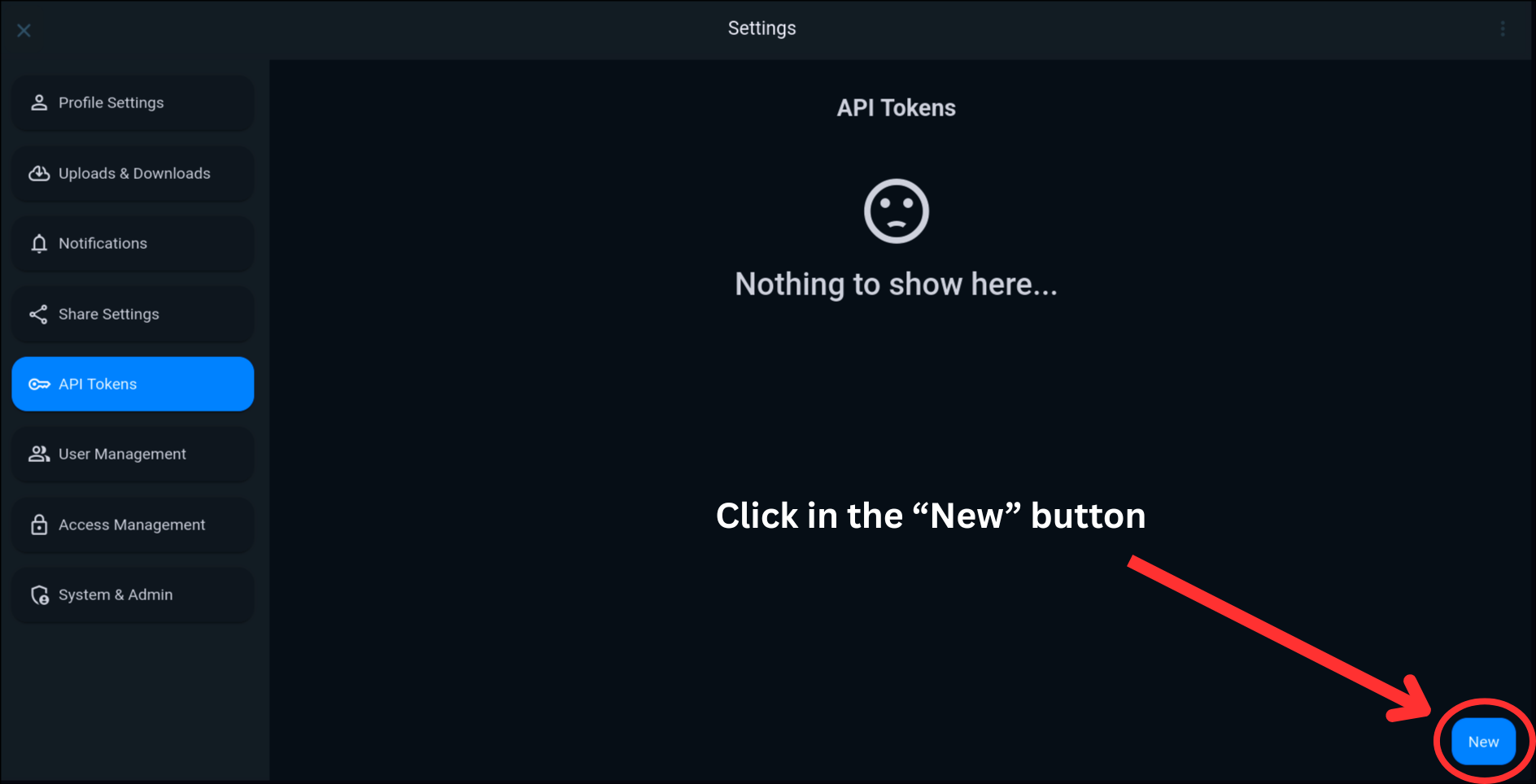
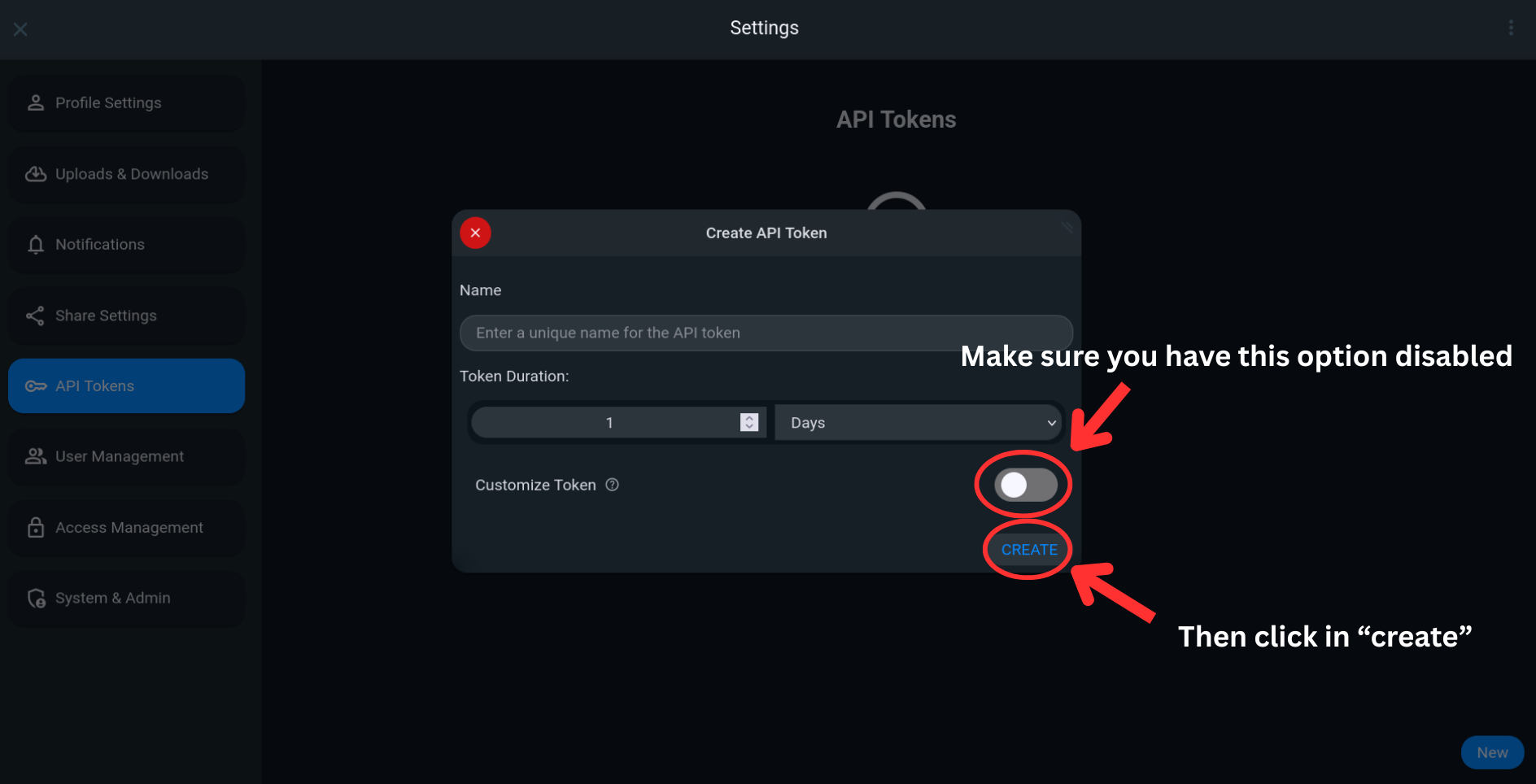
Enter a name and an expiration that fits your use case.
Important: Create the token without customization enabled (the option is off by default). WebDAV needs the short/minimal token form; many clients cannot use the long customized tokens as a password.
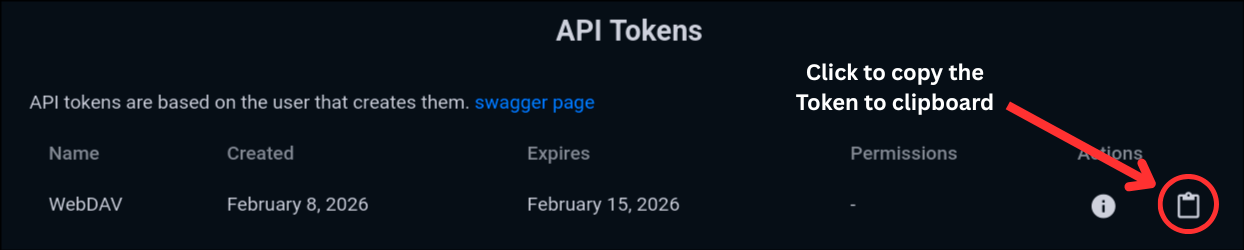
When you create the token, copy the full value and use it only as the password in your WebDAV client.
Username and password
FileBrowser ignores the WebDAV username. It can be left empty, or set to any placeholder (for example a). Some clients require a non-empty username—in that case, any value is fine.
The password must be the complete minimal API token string, with no extra spaces or truncation.
If your user has user scopes configured, FileBrowser resolves paths according to the user who created the token; you do not need to add a scope folder to the path manually when that applies.
Server URL
Examples:
https://files.example.com/dav/<source-name>/http://192.168.1.210:8080/dav/<source-name>/http://localhost/dav/<source-name>/
Reverse proxy: If FileBrowser is served under a host or path prefix, use the same origin you use in the browser. For example:
https://sub.example.com/dav/<source-name>/https://sub.example.com/prefix/dav/<source-name>/— when the app is mounted under/prefix
That pattern is valid for clients such as DAVx5 as long as the URL matches how you reach the instance.
To open a folder inside a source instead of the whole source:
https://files.example.com/dav/<source-name>/my-folder/
Quick method: In the Web UI, open the folder you want, copy the address bar URL, then replace /files/ with /dav/. Example: https://files.example.com/files/data/folder/ → https://files.example.com/dav/data/folder/
Required permissions
Permissions are evaluated for the source in the WebDAV URL (/dav/<source-name>/…). You only see sources and paths your user can access. Access control rules can still deny specific paths even when permissions are granted.
| Client action | WebDAV method | Required permission(s) |
|---|---|---|
| Browse folders, list properties | PROPFIND, OPTIONS | View |
| Read / download file contents | GET, HEAD | Download |
| Create a folder | MKCOL | Create |
| Upload / overwrite a file | PUT | Modify |
| Delete a file or folder | DELETE | Delete |
| Copy within the same source | COPY | Download + Create |
| Move / rename | MOVE | Modify |
Practical summary:
- Read-only mount (browse + open files): View + Download
- Full sync / file manager (typical WinSCP, rclone, Finder): View, Download, Create, Modify, Delete as needed
- Browse-only (folders visible but files won’t open): View without Download
Configure these on each user scope in User Management (expand the source row). Unhandled WebDAV methods (for example LOCK, PROPPATCH) are denied.
Before v2.0.0, browsing a source was always allowed once the user had that scope — there was no separate view permission. v2.0.0 introduces view as an explicit grant and splits listing (view) from reading bytes (download). Migration sets view to true on existing scopes unless configured otherwise.
Tested Clients
Windows Explorer supports mounting WebDAV as a drive natively in Windows Explorer. But this feature was deprecated since Nov 2023. Will only work in older Windows versions before that date. We can still mounting WebDAV natively in modern Windows versions, but is more tricker and has several limitations. Is recommended to use other methods such as rclone, or WinSCP instead.
Some clients working with FileBrowser are:
- rclone - Cross-platform (desktop only) and supports mount.
- WinSCP - Third party client for Windows (see the linked guide).
- MixPlorer - File manager for Android.
- Symfonium - Music Player for Android.
- Material Files - File Manager for Android.
- ONLYOFFICE Mobile apps - Mobile devices only. (Clouds > Sign in > Other WebDAV storage)
- Desktop file managers such as Finder in macOS and Thunar, Dolphin, Nemo, Nautilus… in Linux.
You may need to omit https:// or http:// when setting the server URL depending on the client you are trying to connect. If you use https you will need to use port 443, or the port number that was used with FileBrowser.
Some clients also may use DAVS or DAV instead of https or http.
For guides on how to setup some clients, you can check our guides – You can also check awesome-webdav.
Disable WebDAV
The WebDAV feature in FileBrowser is enabled by default, if you want to disable it you’ll need to edit an option in your config file, the option can be found under the server section:
After you edit the config file, remember to restart FileBrowser for the changes to take effect.
Troubleshooting
Mount as a drive for Windows
WebDAV support was deprecated since November 2023, so this is not currently supported in newer versions of Windows when trying from the File Explorer. You’ll need to install rclone and winfsp to mount WebDAV as a drive. You can see this guide to set up rclone for WebDAV.
Alternatively, you can use WinSCP as file manager itself without mapping as a drive. The only downside is that you can’t manage files with any other software more than WinSCP interface.
Access Denied
If you get access denied could be for the following reasons:
- The API Token expired: Try setting a longer duration time for the API Token.
- The path that you’re trying to access is not valid: Make sure that you access to the path by checking in the WebUI.
- Insufficient per-source permissions: Open User Management, edit the user (or the user who owns the token), expand the source matching your WebDAV URL, and grant the capabilities from Required permissions — for most clients you need View + Download to browse and open files, plus Create / Modify / Delete for writes. Also see Access control.
- Scope or access rule: The path may be outside the user’s scope for that source, or blocked by an allow/deny rule.
Connection or configuration issues
If WebDAV still fails after checking URL, scheme (HTTP/HTTPS), and a fresh minimal token, inspect FileBrowser server logs around the time of the request. Failed auth, wrong paths, or proxy misconfiguration often show up there. Log configuration is described in Logging configuration.
Next Steps
- WebDAV Guides - How-to guides to connect filebrowser with some WebDAV supported software.
- rclone guide - Basic rclone guide for desktop.