WebDAV
WebDAV is only available as of v1.3.0-beta version of FileBrowser. It’s enabled by default and no additional configuration is needed. This banner (and the “experimental” status) will be removed once WebDAV is implemented for stable version as well.
What is WebDAV?
WebDAV is a feature in FileBrowser that will let you access and manage your files directly from your devices remotely.
It’s also an alternative to the WebUI since you can mount/use one (or multiples) of your sources directly on your devices and manage the files stored in them. This allows the use of native applications to create/edit/organize files via WebDAV that are not possible via WebUI. For example, you can edit documents using native office suites without Office Integration enabled, or organize folders/files using native apps like Explorer on Windows (In versions before Nov 2023), Finder on macOS, Thunar/Dolphin in Linux, etc. You can also use any third party client or app that support WebDAV to access your files!
How to use WebDAV
WebDAV is enabled by default and can be accessed from various clients in your devices via Basic Auth with an API Token being the password. You’ll need to follow these steps:
01. Create API Token
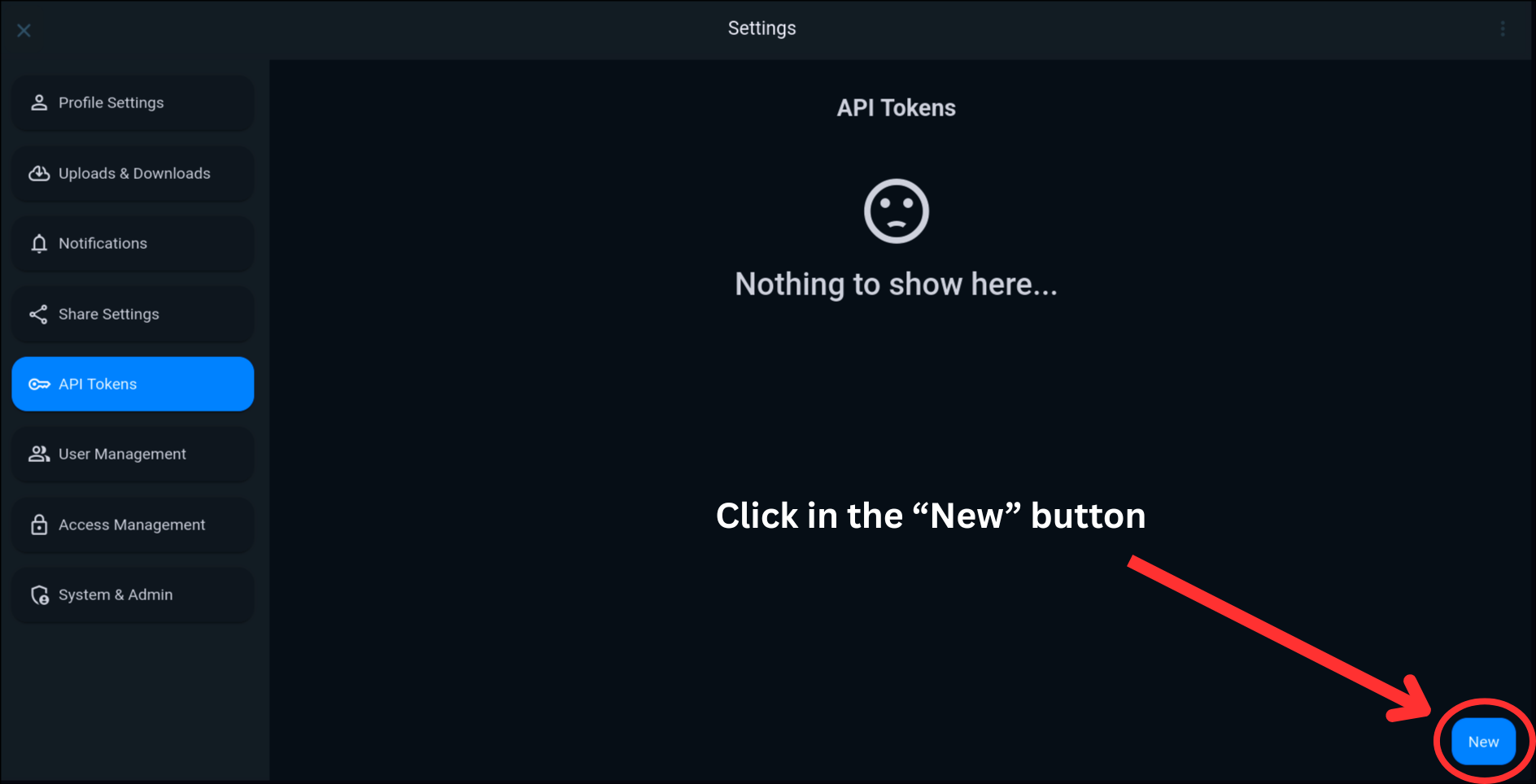
- Login into FileBrowser and go to
Settings->API Tokens:
02. Tokens without customization
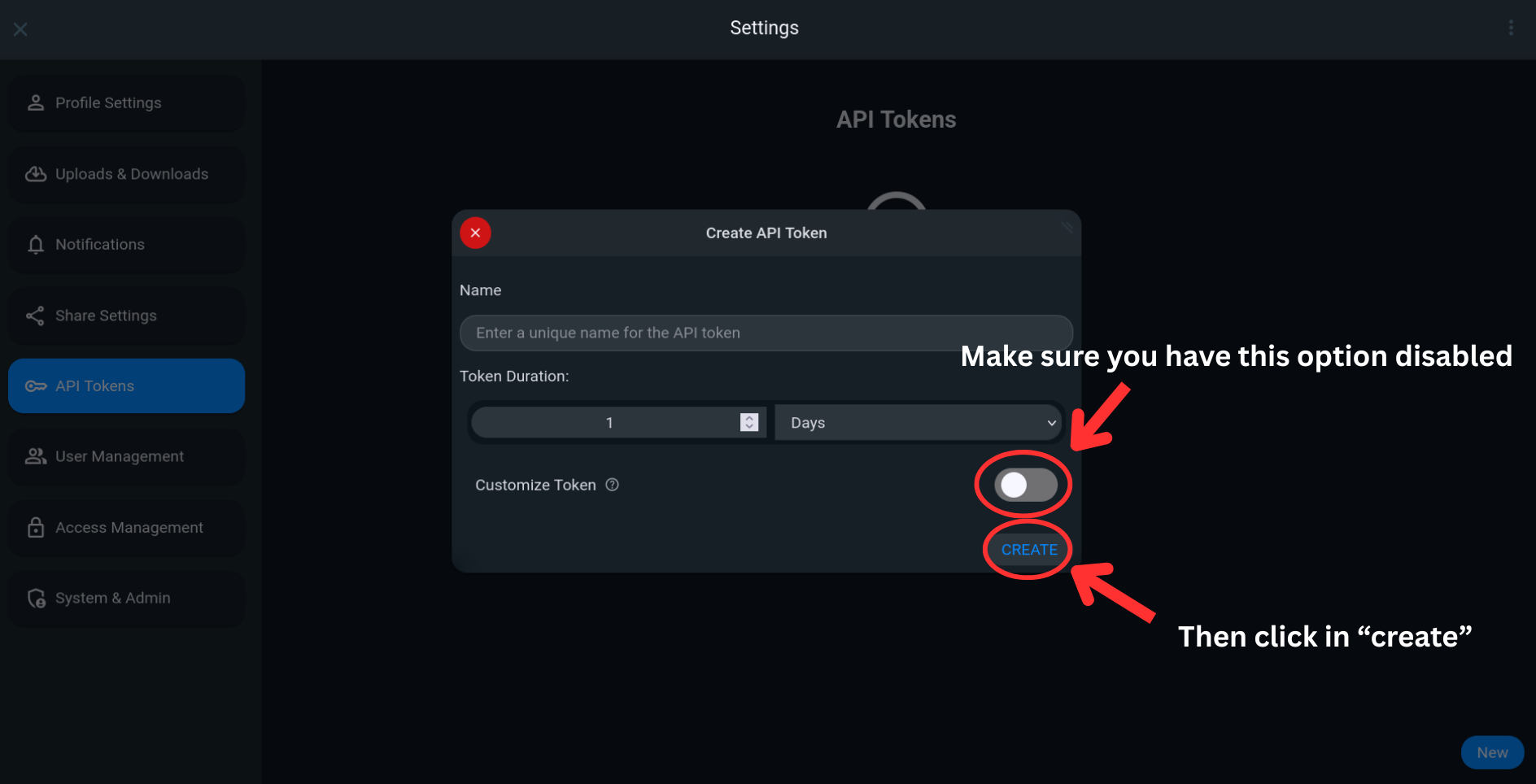
Enter a suitable name and set a duration for the expiration of the token according to your requirements.
When creating an API Token for WebDAV, you’ll need to create a Token without customization enabled. The option is disabled by default but make sure that you have it disabled.
When creating a Token this way, it will inherit the permissions of the user who created it. These types of tokens are much shorter than the customized ones, this is necessary since not all WebDAV clients/apps support longer passwords for authentication.
03. Copy Token
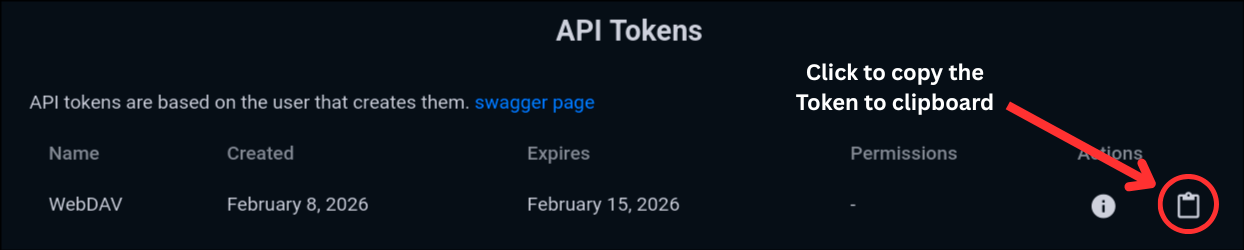
Once you created the Token, copy it to your clipboard and use it as password for you preferred WebDAV client.
When authenticating to WebDAV clients, the username field will be completely ignored by FileBrowser, you can fill it with anything. Setting your username itself will be ideal, but the only required fields are the URL to the server and the password for authentication. Some clients may have extra configurations to add (most of them optional), such as DAV protocol: DAV or DAVS (http or https in simpler words), ports, etc.
04. Server URL
The remote path set for WebDAV is basically the starting point when you open a client:
/dav: This is required for FileBrowser to know that you are trying to access WebDAV./<source_name>: Required to set the name of the source (case-sensitive).
If your user has user scopes configured, FileBrowser will return the path of the scope automatically based in who created the Token, there’s no need to specify the full path including the scope folder.
/– Trailing slash: Is recommended to add one at the end, but this is optional.
So, the final URL in the URL field could be like:
https://files.example.com/dav/<source-name>/http://192.168.1.210:8080/dav/<source-name>/http://localhost/dav/<source-name>/
If you don’t want to use the whole source and just map a specific folder, you can too, for example:
https://files.example.com/dav/<source-name>/my-folder/
An easy way to set the URL is open the WebUI in your browser, navigate to your desired folder, copy the URL, and replace /files/ with /dav/. For example:
https://files.example.com/files/data/folder/becomeshttps://files.example.com/dav/data/folder/
You’ll only have access to folders and sources that your user has access to – For example, you can’t open a folder or access a source if your user can’t. You’ll be unable to perform certain operations if your user lacks the necessary permissions as well. You’ll need download permission to view, and modify/create/delete permission to modify files.
Tested Clients
Windows Explorer supports mounting WebDAV as a drive natively in Windows Explorer. But this feature was deprecated since Nov 2023. Will only work in older Windows versions before that date. We can still mounting WebDAV natively in modern Windows versions, but is more tricker and has several limitations. Is recommended to use other methods such as rclone, or WinSCP instead.
Some clients working with FileBrowser are:
- rclone - Cross-platform (desktop only) and supports mount.
- WinSCP - Third party client for Windows.
- MixPlorer - File manager for Android.
- Symfonium - Music Player for Android.
- Material Files - File Manager for Android.
- ONLYOFFICE Mobile apps - Mobile devices only. (Clouds > Sign in > Other WebDAV storage)
- Desktop file managers such as Finder in macOS and Thunar, Dolphin, Nemo, Nautilus… in Linux.
You may need to omit https:// or http:// when setting the server URL depending on the client you are trying to connect. If you use https you will need to use port 443, or the port number that was used with FileBrowser.
Some clients also may use DAVS or DAV instead of https or http.
For guides on how to setup some clients, you can check our guides – You can also check awesome-webdav.
Disable WebDAV
The WebDAV feature in FileBrowser is enabled by default, if you want to disable it you’ll need to edit an option in your config file, the option can be found under the server section:
After you edit the config file, remember to restart FileBrowser for the changes to take effect.
Troubleshooting
Mount as a drive for Windows
WebDAV support was deprecated since November 2023, so this is not currently supported in newer versions of Windows when trying from the File Explorer. You’ll need to install rclone and winfsp to mount WebDAV as a drive. You can see this guide to set up rclone for WebDAV.
Alternatively, you can use WinSCP as file manager itself without mapping as a drive. The only downside is that you can’t manage files with any other software more than WinSCP interface.
Access Denied
If you get access denied could be for the following reasons:
- The API Token expired: Try setting a longer duration time for the API Token.
- The path that you’re trying to access is not valid: Make sure that you access to the path by checking in the WebUI.
- You don’t have enough permissions: Check that your user has the necessary permissions to access WebDAV, you’ll need
downloadpermission to view, andmodify/create/deletepermission to modify files. Also see Access control.
Next Steps
- WebDAV Guides - How-to guides to connect filebrowser with some WebDAV supported software.
- rclone guide - Basic rclone guide for desktop.