Sidebar Customization
Starting in v1.1.x, the sidebar is fully customizable per user. This means a user can configure their sidebar with their own links, icons, and order it how they want.
Default configuration
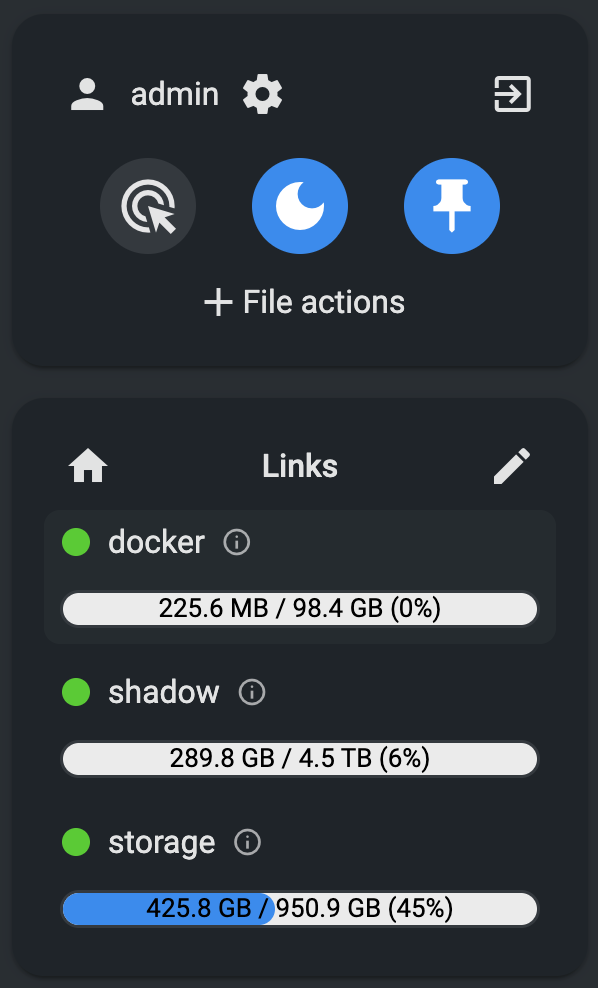
By default, a user’s sidebar is populated with the sources they have access to. But after a user is created they will need to update their sidebar to add/remove sources.
Customizing the sidebar
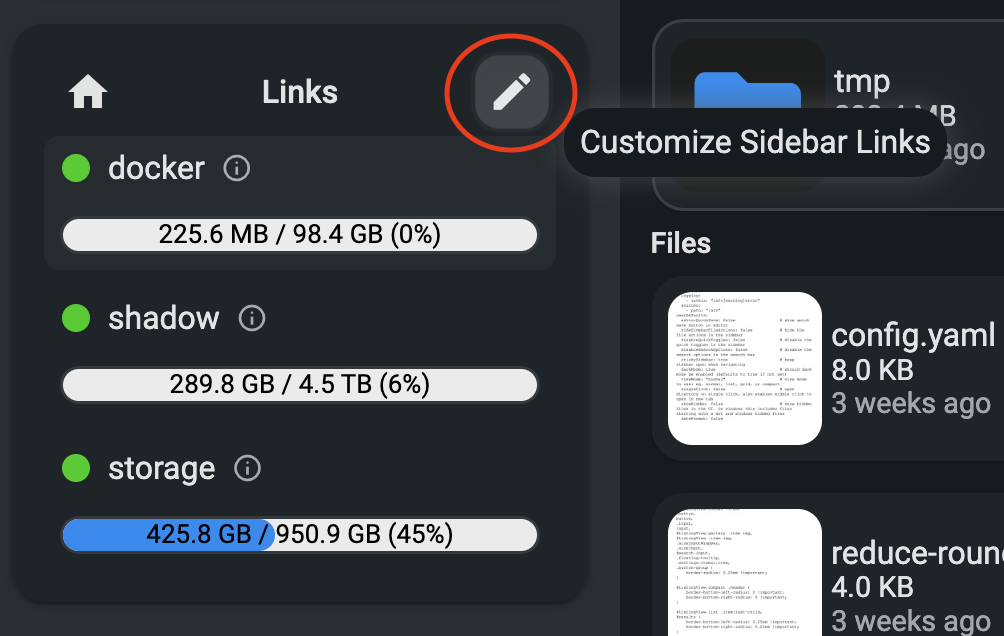
Each user can customize their sidebar in a persistent way that persists wherever that user logs in.
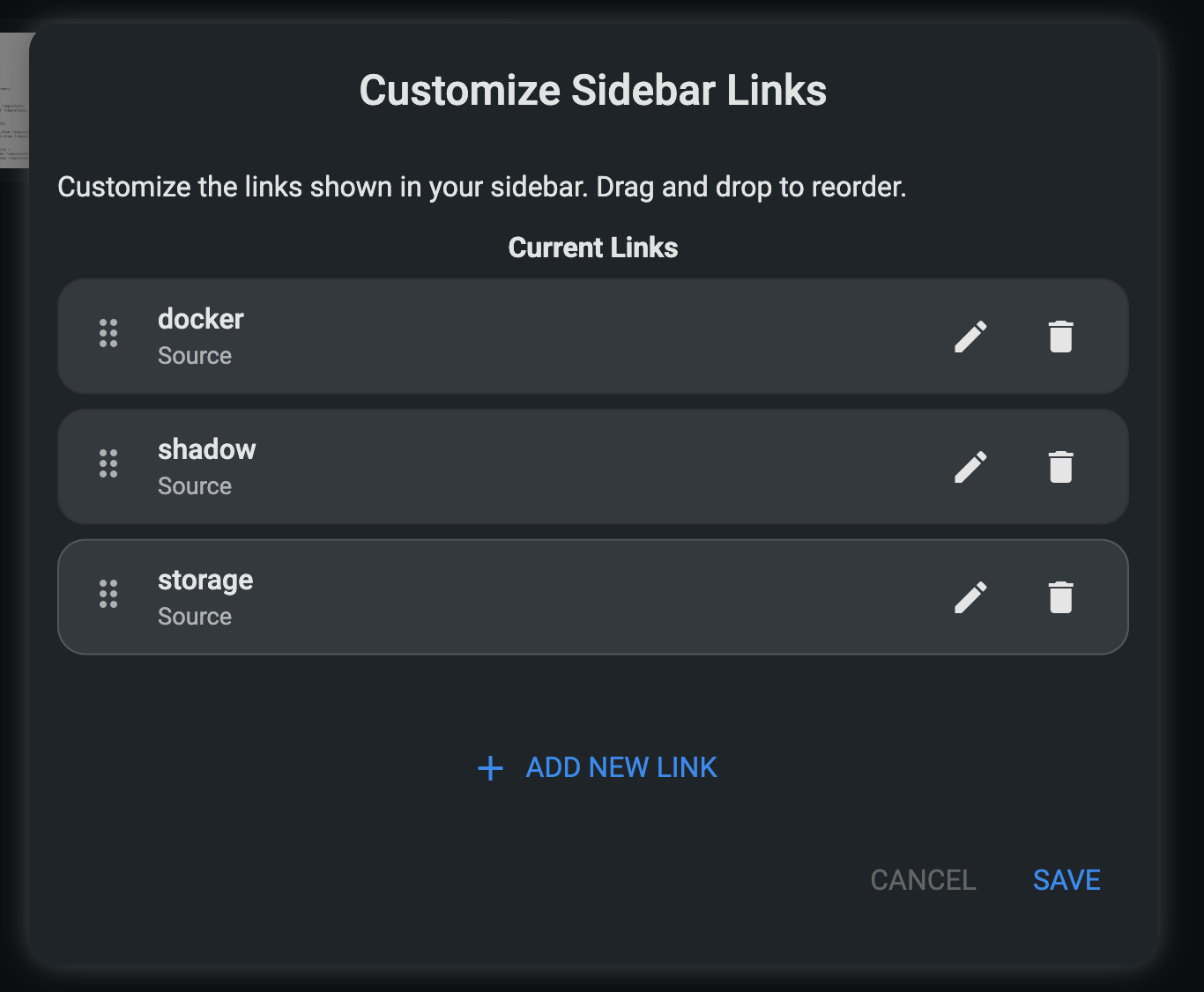
Items can be added, removed, and re-arranged.
Link types
Theres currently 4 different link types:
- Source: This will show the usage bar if configured and link to the source. The subpath is configurable. You can have multiple links to the same source, useful if you set different subpaths within a source.
- Share: This will be a link to a share path. The subpath is also configurable.
- Tool: You can link to “tools” which is the main tools page that shows all tools, or select individual tools to link directly.
- Custom: This supports any URL such as “https://google.com” or any relative path on filebrowser, such as
/settingsor add even your favorite folder you frequent.
Source link configuration
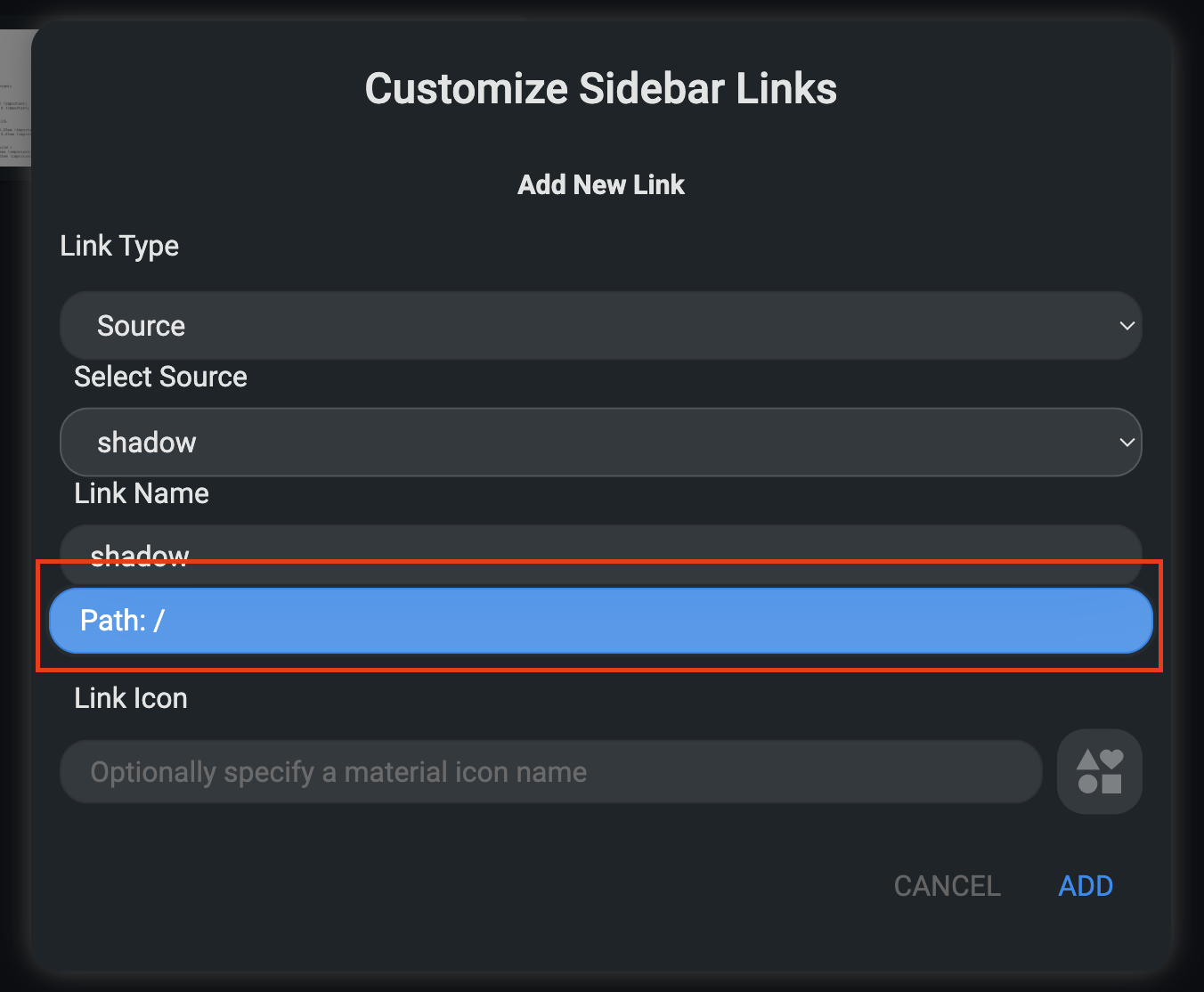
After selecting the desired source, you can configure the display name, a subpath, and an icon.
If you leave icon blank, it will default to the green/yellow/red status indicator with the progress bar. If you specify an icon, it will show a minimal button with that icon.
Share link configuration
Share links are similar to source links, allowing selecting a share thats available and a subpath for that share.
In order to choose a share, a user must have “share” permissions. Otherwise, a user must use custom-links to create share links.
Tool link configuration
Tool links are a list of direct links to tools. If a user selects tools then the link will go to the tools overview page that lists all tools.
Custom link configuration
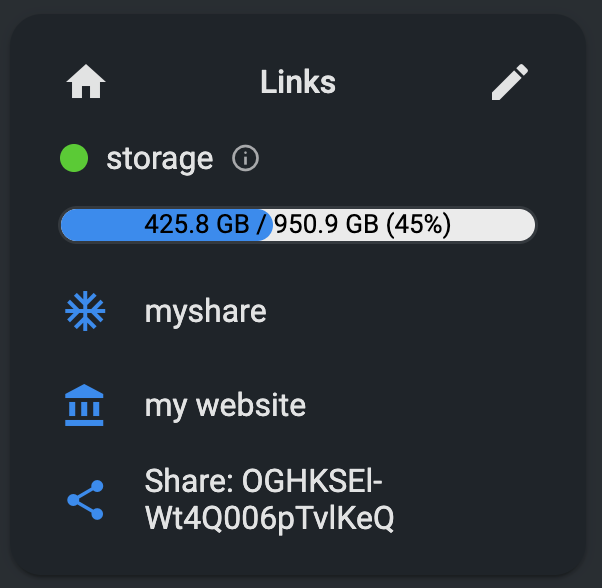
Custom links offer name, path, and icon support. This is a general purpose link that can act as a favorite/bookmark in the bar. Supporting external links as well as shares. A relative link is also possible, for example /public/share/OGHKSEl-Wt4Q006pTvlKeQ
Customization example
You can create an unlimited number of custom links and sort them however you like. See this example