Search
FileBrowser’s search feature helps you quickly find files and folders across your sources. With instant results powered by an efficient index, you can locate any file in seconds.
Quick Access
Click the search bar or press / on your keyboard from anywhere in FileBrowser to instantly open the search bar and start searching.
How Search Works
FileBrowser uses the index information from the source, this allows all search results to be instantly available without scanning the filesystem.
First-time startup: If you don’t have persistent indexing enabled, there may be a brief delay while FileBrowser indexes your files. After the initial index is built, searches will be lightning fast.
Basic Search
Simply type your search terms to find matching files and folders:
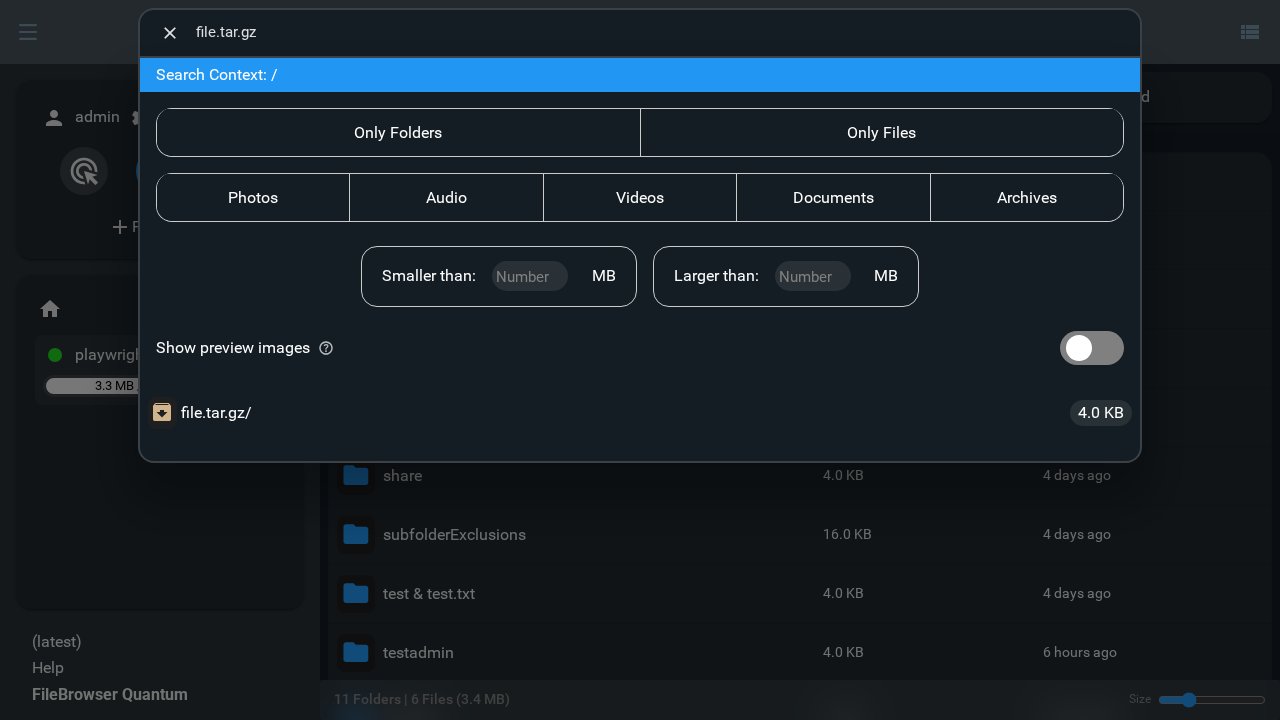
The search will match:
- File and folder names
- Any part of the path
- Text is case-insensitive by default
Search Context
When you open search, it shows the current search context - the folder you’re currently in. By default, search looks within your current location and all subfolders.
Searching Multiple Sources
If you have access to multiple sources, you can search across all of them at once using the source dropdown:
- Select “All” to search every source you have access to
- Choose a specific source to search only that source
When searching multiple sources, results show a badge indicating which source each file belongs to.
Advanced Filters
Click Show Options to reveal powerful filtering tools that help narrow down your search results.
On mobile devices
Tap the search icon to open search
The search options are initially hidden - tap Show Options to expand them
File Type Filters
Filter your search by specific types of content:
Folder/File Toggle:
- Only Folders - Show only directory results
- Only Files - Show only file results (enables additional filters below)
File Category Filters (when “Only Files” is selected):
- Photos - Image files (JPG, PNG, GIF, etc.)
- Audio - Music and sound files (MP3, FLAC, WAV, etc.)
- Videos - Movie and video files (MP4, MKV, AVI, etc.)
- Documents - PDFs, Word docs, spreadsheets, etc.
- Archives - ZIP, TAR, compressed files, etc.
You can combine multiple category filters to search for specific types of files. For example, select both “Photos” and “Videos” to find all your media files.
Size Filters
Find files based on their size using the size constraint inputs:
- Smaller Than - Enter a number (in MB) to find files below that size
- Larger Than - Enter a number (in MB) to find files above that size
You can use both filters together to find files within a specific size range. For example:
- Larger than: 100 MB
- Smaller than: 500 MB
This will show only files between 100-500 MB.
Preview Images
Toggle Show Preview Images to display thumbnail previews for image and video files in the search results. This makes it easier to visually identify the files you’re looking for.
Search Results
Each search result shows:
- File/folder icon - Visual indicator of the item type
- Full path - The complete path to help you locate the file
- File size - For files, the size is displayed
- Source badge - When searching multiple sources, shows which source contains the file
Interacting with Results
Click any search result to navigate directly to that file or folder. You can also:
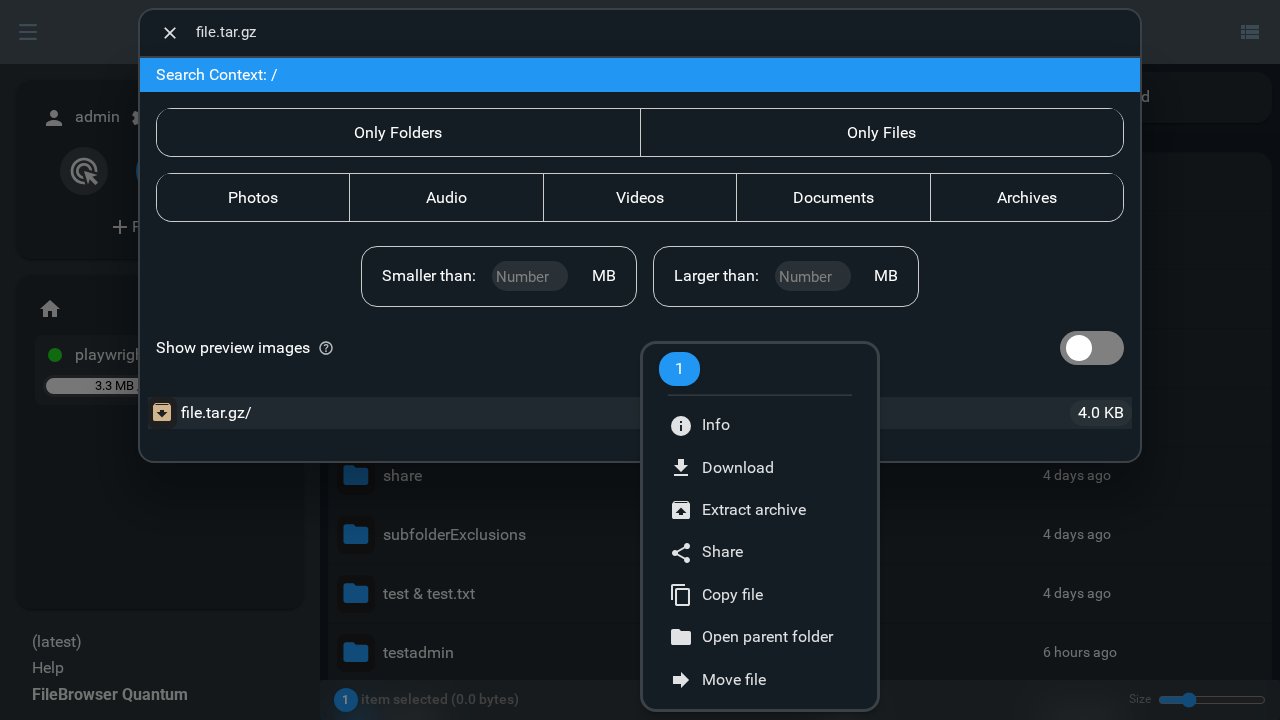
- Right-click (or long-press on mobile) to open the context menu
- Access all normal file operations: download, rename, delete, share, etc.
Search Performance
FileBrowser’s search is designed to be fast and efficient:
- Index-based - Results come from a pre-built index, not live file scanning
- Sub-second results - Most searches complete in under 1 second
- Handles thousands of files - Efficiently searches large file collections
Instant results: Unlike traditional file browsers that scan the disk on every search, FileBrowser’s indexed search delivers instant results even with large enormous collections.
Keyboard Shortcuts
/- Open search from anywhereEsc- Close search and return to browsingEnter- Navigate to the first search result
Search makes it easy to find what you need, when you need it, without manually browsing through folders.