Thumbnail Previews
This document details the features related to file thumbnails and previews.
This does not include the viewing or editing of files.
About thumbnails
Filebrowser Quantum has 3 sizes for thumbnails:
- small – 256x256 pixels
- large – 640x640 pixels
- original - original dimensions
All view modes display small thumbnails. If High quality thumbnails is enabled, then gallery view mode and the pop-up previewer (see below) have large thumbnails.
Thumbnails are generated in various ways depending on the filetype.
- Images:
- A limited number of image types can be downsized for thumbnails. This includes jpeg, png, gif.
- Downsizing to thumbnails improves viewing performance significantly, but can be disabled via
server.disablePreviewResize
- Office Documents
- A library called muPDF allows generating a limited number of documents without any office integration configuration. This includes pdf, docx, xlsx, pptx, and text files.
- Additional office previews are available when office integration is configured.
- Videos
- video previews are available if the media integration is configured or running docker for a wide variety of video formats.
Configuring previews
By default, previews are enabled if available. But they can be configured by each user in settings:
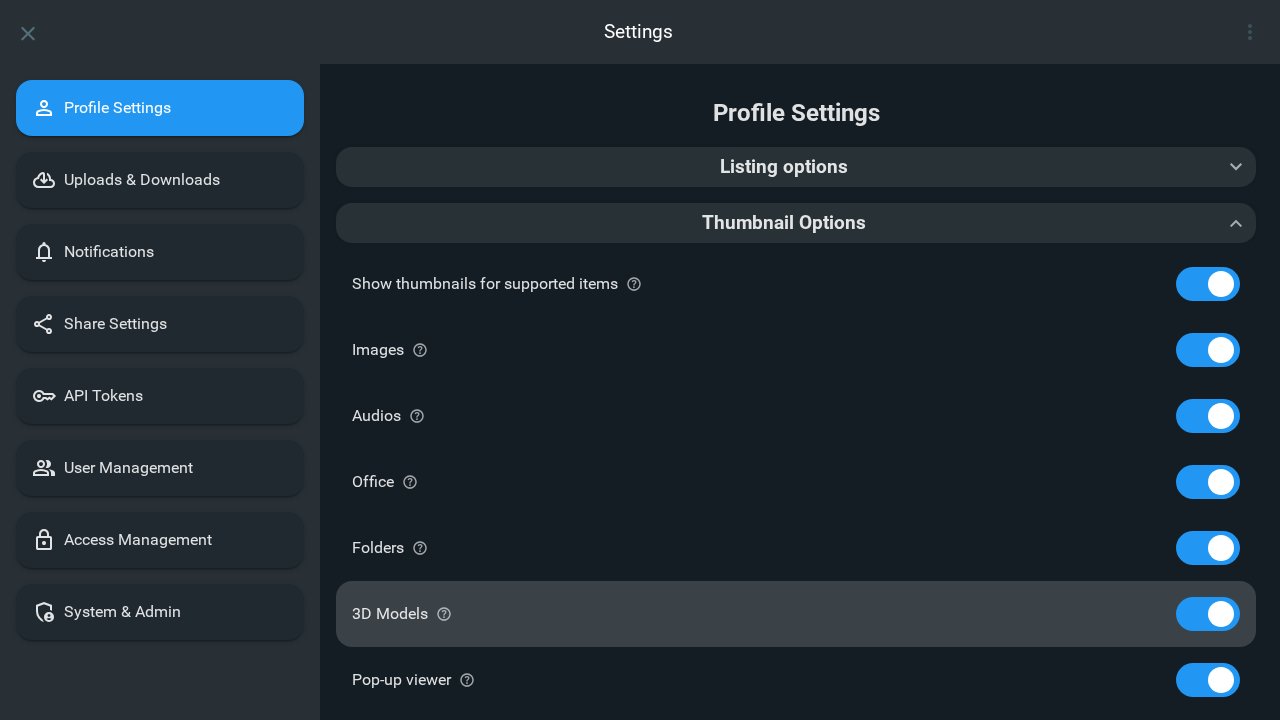
An administrator can create users with defaults by configuring userDefaults. But these defaults do not change existing users.
Some settings such as office previews many not show up in settings if the integration is not available.
Pop-up preview
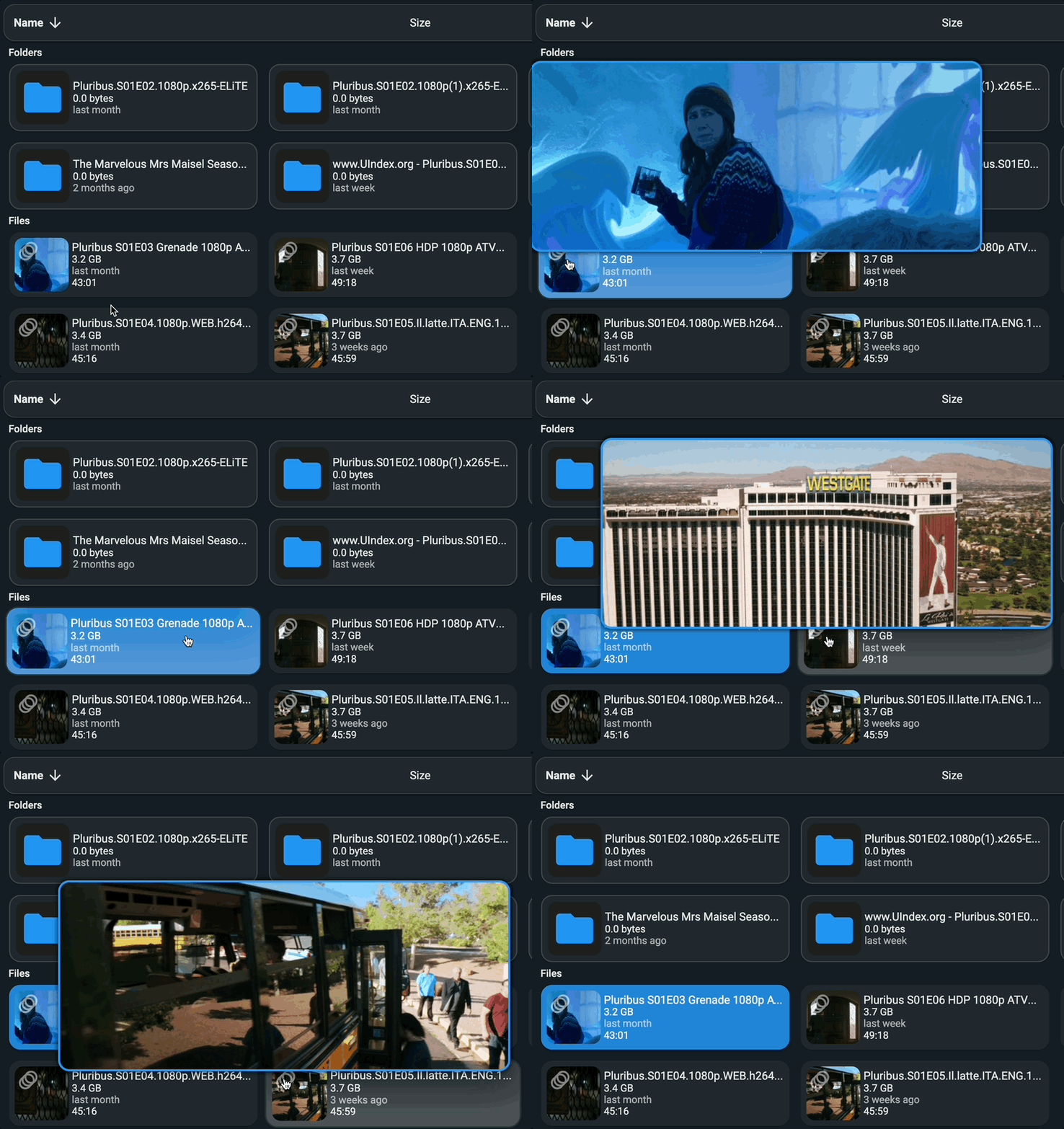
When the “show pop-up preview” toggle is enabled, a pop-up window will show when hovering the mouse over a thumbnail.
If the file is a video and “enable motion preview for videos” is enabled, it will also roll through snapshots of the video at different lengths. Notice the 3-circle icon overlay to indicate that the thumbnail has motion preview support.
Viewing HEIC/HEIF files
Safari is the only browser that can nativly support viewing HEIC images (typically from iphones). However, when the media integration is present, its possible to enable non-safari browsers to view the images through conversion.
When media integration is configured, there’s a possiblity to preview more image types. Currently, only heic images are supported via conversion. It requires enabling integrations.media.convert.imagePreview.heic: true.
If you are not using docker, you’ll also want to install exiftool for proper image rotation support
This feature is disabled by default because it does take a bit of extra work on the server.
Folder Previews
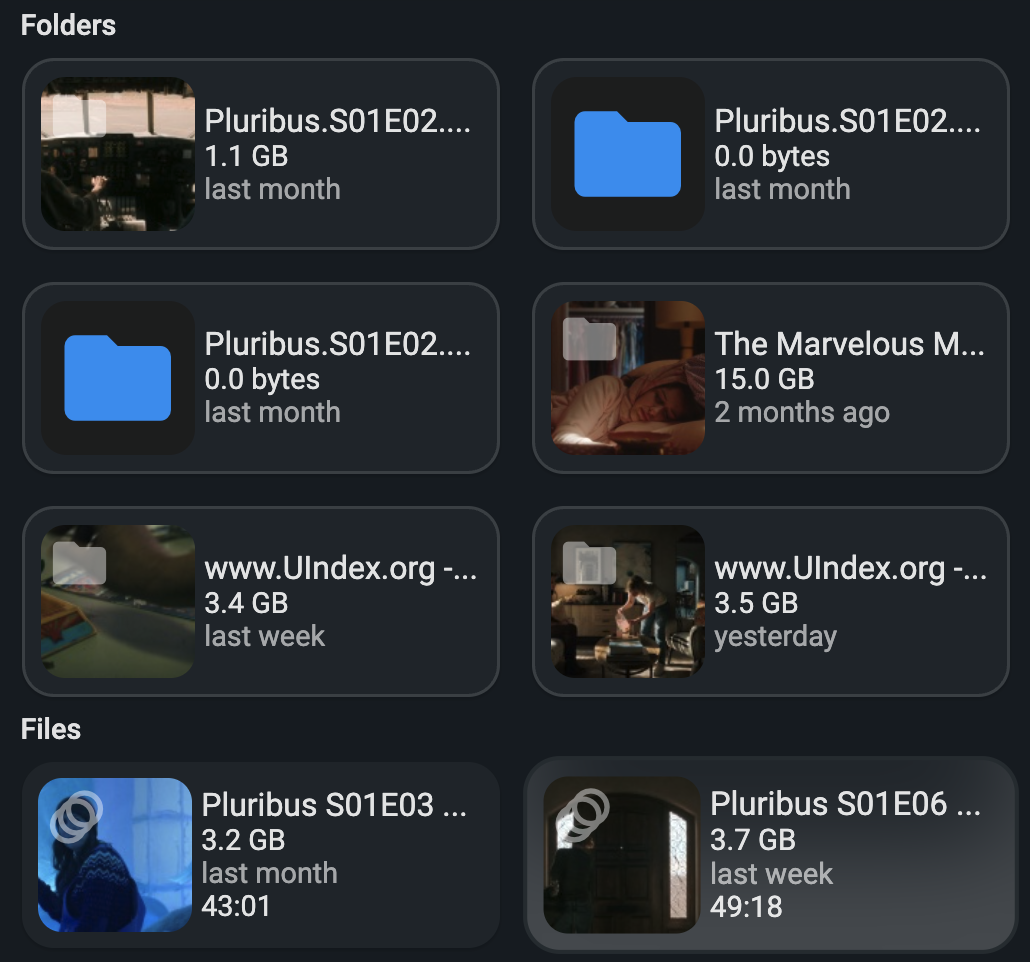
You can also enable previews for folders in profile settings! This will show the first previewable file in the folder (excluding text files). So videos or photos will show as the preview image for a parent folder.
Notice the folder icon overlay to indicate that the item is a folder since it can cause a little confusion if all files have thumbnails